Showing posts with label tools. Show all posts

Thursday, September 29, 2011

@Wikipedia Introduces New App, @QRpedia #Edapp #QRcodes #Edtech #spedtech


Yesterday, Wikipedia introduced a new educational app call QRpedia (@QRpedia).  This is perhaps the coolest implementation of QR codes!  What is QRpedia?  Well, it is a language-detecting, mobile-friendly QR code!  In other words, it is QR code generator that makes possible for users to easily snap a picture of QR code and be automatically directed to a mobile Wikipedia entry in whatever language their phone uses.  If there's not a relevant article in their language for the topic, QRpedia directs users to the most relevant, related article that is available in that language.


QRpedia is a great example of the power of today's technology.  Users are able to easily access a world of additional information available on-demand.   Additionally, individuals can generate QRpedia codes at QRpedia.org!

QRpedia is a project developed that has been developed by @edent, @Victuallers, @prenvo & others.

Read more about QRPedia on ReadWriteWeb or the official Wikimedia blog.

-  Jeremy

Share this
Do you know somebody else who would find this post interesting or useful? Please forward it to them. Did somebody forward this post to you? Visit Teaching All Students and subscribe to receive posts for free. If you need a tutorial please visit this post: RSS Readers.

Friday, September 16, 2011

Handipoints #edtech #spedtech #sped #tck #parents


Handipoints is an online tool or virtual community to help parents motivate their children to complete offline chores or tasks.  


How it works:  
1.  Parents create charts (for behaviors, chores, fitness, etc.).
NOTE:  In order to save charts that they create and for their kids to be able to earn points, parents have to register for a FREE account.  
2.  Kids complete tasks and check them off on the chart


3.  Parent grades the tasks and awards points.
4.  Kids save up points  to play online games or buy cool stuff for their virtual pet cat.

Handipoints also features a library of over 10,000 printables\worksheets as well as arts & crafts ideas, which children could complete to earn points.  Kids can also learn Fun Facts about health, holidays, science and history!


There is a FREE account, which lets parents create charts and worksheets, grade their children's work, and create an online allowance programs.  Paid plans offer premium features.


-  Jeremy

Share this
Do you know somebody else who would find this post interesting or useful? Please forward it to them. Did somebody forward this post to you? Visit Teaching All Students and subscribe to receive posts for free. If you need a tutorial please visit this post: RSS Readers.

Thursday, September 8, 2011

Livescribe Ambassador Program (@LivescribeK12) #edtech #spedtech #assistivetech #spedchat #slpchat


I am excited to share some news that I just received via e-mail. I have been accepted into Livescribe Education's Education Ambassador Program (LEAP)!

What is Livescribe?

Livescribe is a low-cost mobile computing or smartpen platform. The Livescribe revolutionizes writing by recording and linking audio to handwriting. In other words, this smartpen provides users with the capabilities of capturing, connectivity, and archiving similar to a mobile computer.


What are the benefits of being a Livescribe Education Ambassador?
After you have been accepted you receive a refurbished Livescribe smartpen and dot-paper notebook, a complimentary registration to their online course "Smartpen 101", K-12 Idea Book, as well as monthly newsletter with new teaching ideas.
In return, you are asked to create and submit a pencast within 30 days showcasing your ideas for how the Livescribe could be used in the classroom.

Can You Become a Livescribe Education Ambassador?

Unfortunately, the Livescribe Education Ambassador Program is currently full. However, if you would like to to be considered for future opportunities, go ahead and fill out their application.


My Ideas & Pencasts - Demonstrating the Benefits of Smartpen Technology for Special Education

As part of this experience being a Livescribe Education Ambassador, I will be blogging about my ideas for using the Livescribe smartpen with students receiving special education and sharing my pencasts here on the Teaching All Students blog. Stay tuned!


Livescribe's Other Education Programs:

1. Livescribe Innovative Teacher of Excellence (LITE) Program
- recognizes innovative teachers that use Livescribe products in their classrooms and share their bright ideas.


2. Smartpen Loaner Program
- allows educators who present at conferences to borrow a class set of 25 smartpens for demonstration purposes.


- Jeremy
Share this
Do you know somebody else who would find this post interesting or useful? Please forward it to them. Did somebody forward this post to you? Visit Teaching All Students and subscribe to receive posts for free. If you need a tutorial please visit this post: RSS Readers.

Monday, August 1, 2011

Symbaloo - Simple, Symbolic Web Launch Pages for Students?

As a special education teacher who believes that technology is truly an effective way to reach and teach my students, I am always looking for tools to help present information and resources in a way that addresses my students' learning styles and needs.

I teach young children with autism. My students are very visual learners. So, when I want to use a collection of online resources with my class, I want to present them visually.

My solution for this would be symbaloo. Symbaloo is a new visual way to navigate the Internet, which is frequently being used in education.

After creating a FREE account, educators can easily setup "webmixes", which they would be able to access from any computer with Internet access. A "webmix" is a page full of tiles, which visually represent web sites. Symbaloo features a number of customization options (background color, tile color, symbol or upload custom thumbnail, text labels, etc.).

"Webmixes" either can be kept private or shared. The options for sharing include public (add to Symbaloo gallery) or with friends (via e-mail, Facebook, Twitter, Hyves, or using a custom URL).

Symbaloo is great for students to use on tablets (iPads), interactive whiteboards, touchscreens, and regular computers. For an example of how Symbaloo could be used in the special education classroom, here is my IWBs in Special Ed webmix.


Share this
Do you know somebody else who would find this post interesting or useful? Please forward it to them. Did somebody forward this post to you? Visit Teaching All Students and subscribe to receive posts for free. If you need a tutorial please visit this post: RSS Readers.

Wednesday, July 27, 2011

ePub for All

ePub is a free digital book publishing format that can be used to create ebooks for use on mobile devices and computers.  ePub created books can be read on browsers, and many mobile device apps like iBooks, Stanza, Nook for iPad & other free ereaders.  You can even read them on devices like the Nook, Nook Color, Kobo, or Andoid devices.  These books can include pictures, links, audio and video embedded in the book.

Since ePub allows you to embed audio and video it can be useful for creating social stories and books for many different students.  ePubBud is a site that helps you to create your own ePub formatted books for use on browsers and mobile devices.  The general ePubBud is available to anyone and you can use it to create books, view books, get ISBN's to sell your books online (for a small fee), or send them a book and they will digitize it for FREE!

ePubBud also has a EDU site for use by teachers and other professionals at edu.epubbud.com.  With this site you can create classrooms, manage students, as well as create your own books as all the other options.  This site is constantly being updated and the EDU version is very new, so stay tuned for many more updates.

A couple of things I'd like to share about the ePub format that is important when creating.  At this time audio and video are only usable in the iBooks app on iOS devices & in the Chrome web browser.  I don't know about other ereader devices (like the Nook or Kobo), but I would hope that more widespread support will be coming soon!  Also video in the .mp4 format & audio in the .mp3 format works best with ePub.  If you are interested in learning to create your own ePub book you can find out more here:

2 Differentiate - ePub directions
Use Google Docs to create an ePub book
Administer Classrooms & how to create ePub Books

Patrick

Share this
Do you know somebody else who would find this post interesting or useful? Please forward it to them. Did somebody forward this post to you? Visit Teaching All Students and subscribe to receive posts for free. If you need a tutorial please visit this post: RSS Readers

Tuesday, July 26, 2011

Create SMART Board lessons from home for FREE using SMART Notebook Express


With a recent update by SMART Technologies to the SMART Notebook Express tool, teachers can now CREATE new Notebook files on any computer that has web access WITHOUT having the SMART Notebook software installed. When you launch SMART Notebook Express you are presented with two choices: 1. Open an existing Notebook file or 2. Create a new Notebook file. I know that I will definitely find this new feature helpful when I want to create new SMART Notebook activities and might not be on my classroom computer or personal laptop, which have SMART Notebook software installed!


- Jeremy


Share this
Do you know somebody else who would find this post interesting or useful? Please forward it to them. Did somebody forward this post to you? Visit Teaching All Students and subscribe to receive posts for free. If you need a tutorial please visit this post: RSS Readers.

Friday, July 15, 2011

A Cleaner Youtube

If you use YouTube at all in your classroom you probably had issues with inappropriate videos suggested or displayed after you look at a video.  A Cleaner Youtube is an extension to help with that.  Installing A Cleaner Youtube on your Firefox, Chrome or Safari browser removes all comments and related videos from what you are watching.  You can see an example at the top of this post.  It's a must have for any classroom using Youtube!

Thanks to Free Tech 4 Teachers for sharing this information


Patrick


Share this
Do you know somebody else who would find this post interesting or useful?  Please forward it to them.  Did somebody forward this post to you?  Visit Teaching All Students and subscribe to receive posts for free.  If you need a tutorial please visit this post: RSS Readers

Wednesday, July 6, 2011

Google+

Last week Google released their long awaited social networking tool Google+.  While I don't have access to Google+ (and from what I've seen it's pretty hard to get in) from what i've heard it has a quite a lot of potential, especially for education.  This post is not specifically about AT or special education, but I think that the potential of Google+ is something that should be looked at.

Circles:  While this cartoon may explain why people would want to join Google+ (Google+ xkcd), Circles is what sets it apart from Facebook.  When you first start Google+ allows you to sort your friends into groups.  This allows you to share information with specific groups or publicly, which is something that Facebook has not made easy.

Implications for Education:  Circles would allow you to friend family, friends, co-workers or students which is something that I would never do on Facebook.  By creating Circles you can share information with one Circle, some Circles or publicly with everyone.  It allows you to share more like you typically do, you share certain information with co-workers, close friends or family.  It solves the Facebook issue of everything being public.

Hangout:  Hangout is a video chat for up to 10 people.  The chat is run from your browser and includes text chat, Youtube video sharing (which means you all can watch), and automatic switching to who is talking.  You do need to download a small file from Google to make it work - Google voice & video chat.  To use Hangout, you set your profile to say you are available to certain Circles, then your friends can initiate the video.

Implications for Education:  Imagine having "office hours" via Hangout.  You can set certain times you'll be online and available to Hangout with your students.  Offering help via video and hopefully screen sharing or whiteboard too (don't know anything just features I'd like to see).  Hangout's even continue after you leave the session, allowing students to continue to discuss after you leave.

Sparks:  Sparks is a way to discover new content/information.  You add your interests and Google finds articles, stories, or posts that fit that topic.  You can then share that information with your Circles or publicly.

Implications for Education:  Sparks sounds like a machine curated version of Twitter.  While information on Twitter is curated by your friends, Sparks is more Google directed.  I can see this as a very interesting way to discover new information for my PLN and such.

Again, I have not had access to Google+ and these are just my impressions.  If you are interested in seeing more about Google+ I recommend checking out EdReach.us this week as they are doing a great round up of Google+.  Also, check out Episode 101 of This Week in Google on the TWIT network.


Patrick


Share this
Do you know somebody else who would find this post interesting or useful? Please forward it to them. Did somebody forward this post to you? Visit Teaching All Students and subscribe to receive posts for free. If you need a tutorial please visit this post: RSS Readers

Wednesday, April 6, 2011

Voicethread Universal


Voicethread has been one of my favorite tools to use in the classroom.  They've added a new feature that makes it better for some students.  Voicethread Universal minimizes the they typical Voicethread interface and makes it easier to use alternate access methods like JAWWS, Dragon, or keyboard navigation.  It's a great way to access a great product.  Thanks the Richard Byrne for mentioning this update! (Voicethread Universal)

Patrick


Share this
Do you know somebody else who would find this post interesting or useful? Please forward it to them. Did somebody forward this post to you? Visit Teaching All Students and subscribe to receive posts for free. If you need a tutorial please visit this post: RSS Readers

Monday, March 28, 2011

SpeechTechie - GlogsterEDU week


Sean Sweeney, over at SpeechTechie, has a great series this week on GlogsterEDU.  If you have ever thought about trying out this web2.0 tool (which, if you don't know, is basically a electronic poster), this is the time to do it.  Sean will be posting screencasts of how to sign up for Glogster, use Glogster, and get the most out of it for your students!  Make sure to check back each day to see more info, or just add it to your RSS reader!  I know I'll be checking them out!


Patrick

Share this
Do you know somebody else who would find this post interesting or useful? Please forward it to them. Did somebody forward this post to you? Visit Teaching All Students and subscribe to receive posts for free. If you need a tutorial please visit this post: RSS Readers

Sunday, April 11, 2010

Latest to Learn - Prezi


I've recently had an opportunity to present a full day workshop on Using the Latest to Learn.  It was a great success and many of the participants had some great ideas for me!  I would like to thank the PROUDD organization for having me speak and would like to share with all my readers the presentation I gave.  It comes in 2 parts.  You can see the Prezi (it's just so much fun to use!) here - http://tinyurl.com/latesttolearn and the accompanying wiki (with all the links!) here - http://teachntech.wikispaces.com/latesttolearn.

Patrick

Share this
Do you know somebody else who would find this post interesting or useful? Please forward it to them. Did somebody forward this post to you? Visit Teaching All Students and subscribe to receive posts for free. If you need a tutorial please visit this post: RSS Readers

Sunday, April 4, 2010

Workshop: Using the Latest to Learn

For those of my readers in the Chicagoland area, I would once again like to invite you to a great workshop that I will be leading.  This workshop is being sponsored by the PROUDD organization.  PROUDD is a not for profit organization that provides education and training for anyone living or working with a person with a developmental disabilities.  The workshop, titled - Using the Latest to Learn, will be a look at the many iPhone, iPod Touch & web apps available for free or low-cost to help students learn.  The workshop is Saturday, April 10, and will be held on the Naperville NIU campus.  Please view the flyer for full registration details - Using the Latest to Learn.  I'd love to see some of my readers there!

Patrick


Share this
Do you know somebody else who would find this post interesting or useful?  Please forward it to them.  Did somebody forward this post to you?  Visit Teaching All Students and subscribe to receive posts for free.   If you need a tutorial please visit this post: RSS Readers

Monday, March 22, 2010

Send to Google Docs


Lifehacker shared another great tip for making Google Docs more useful.  As you may be aware Google recently started allowing you to store any type of file within your Google Docs account (see this article from Lifehacker).  A new Chrome extension - Send to Google Docs - allows you to send a PDF of any page, image, or swf directly to your Google Docs account.  For images and swf files you have to open them in a new tab, but it works nicely, especially if you like keeping everything in one place, Google Docs could be that place.  There is also an extension for Firefox that does the same thing - Send to Google Docs Firefox.  It's a great way to keep track of what you see!


Patrick


Share this
Do you know somebody else who would find this post interesting or useful? Please forward it to them. Did somebody forward this post to you? Visit Teaching All Students and subscribe to receive posts for free. If you need a tutorial please visit this post: RSS Readers

Friday, December 4, 2009

SuperTeacherTools

I heard about a fun site from Angela Maiers (@angelamaiers) on Twitter.

SuperTeacherTools is a site for easy to use, flash games and utilities.   It includes Flash Jeopardy,
Flash Jeopardy Review Game
a seating chart generator,
Seating Chart Maker
a random name generator
Random Name Generator

and several others.  It's easy to use, customize and free!  I was able to set up a class list within minutes and start using the site.  Have fun checking this one out!


Patrick

Share this
Do you know somebody else who would find this post interesting or useful?  Please forward it to them.  Did somebody forward this post to you?  Visit Teaching All Students and subscribe to receive posts for free.  If you need a tutorial please visit this post: RSS Readers

Thursday, October 15, 2009

Online OCR

<
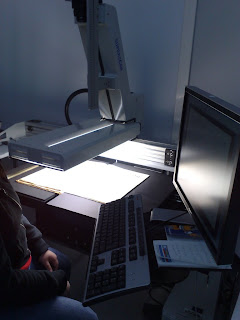
Last week I shared that Google Docs is testing a feature that allows you to do OCR (optical character recognition) with .jpg, or .gif files. Today Lifehacker shared another great tool for this OnlineOCR

OnlineOCR allows you to create Word documents of common scanned images (.jpg, .gif, or .tiff). You can also upload .pdf files and convert them to Word documents. You can also create documents in .rtf, txt, and html files. The basic conversion is free, but they place limits on the size & number of pages (1 MB in size no more than 5 pages). You can create a free account and they expand the size to 20 MB, but still only 5 pages. You can purchase more pages for a small fee (30 pages for $3.00). I've not used the service yet, but it seems to be a great alternative for small OCR jobs you might want to complete.


Photo courtesy of Flickr Creative Commons: xmacex


Patrick

Share this
Do you know somebody else who would find this post interesting or useful? Please forward it to them. Did somebody forward this post to you? Visit Teaching All Students and subscribe to receive posts for free. If you need a tutorial please visit this post: RSS Readers

Friday, October 2, 2009

100 Mobile Tools for Teachers


So it's a rainy Thursday night and I should be doing what any self-respecting teacher does on Thursday night, write lesson plans, but I'm in the mood to blog, so here goes. A reader of Teaching All Students shared this link with me:

100 Mobile Tools for Teachers - Link removed at the request of the content creator - 6/19/2012

It's a great list of ways to use desktop, laptops and even mobile devices to assist in teaching all students! Some of the ones I liked were We-Fi (a social way to find Wi-Fi access) and coolmath4kids.


Photo courtesy of Flickr Creative Commons: WilliamHook


Patrick

Share this
Do you know somebody else who would find this post interesting or useful?  Please forward it to them.  Did somebody forward this post to you?  Visit Teaching All Students and subscribe to receive posts for free.  If you need a tutorial please visit this post: RSS Readers

Tuesday, July 28, 2009

How to download Youtube videos

Many school still block sites like YouTube.   I don't want to get into a debate over why this is, or if it's right, but there are ways around this blocking.  There are several sites that allow you to input the URL and the website will convert the file for download.  Some of the site will email you when it's finished and some you just have to wait for them.  All of these sites allow you to pick multiple movie formats (.wmv, .mov, or iTunes format) or even audio only formats like .mp3.

Media Converter - one of the first that I've use, simple easy to use.

Zamzar - another easy to use site, it will email you with the file to download.

Convert Play Tube
- a site I've just found, but very easy, nice big buttons for picking format.

Quietube - not specifically a site download videos, but a way to "declutter" them. What you do is install a bookmark in your toolbar, then navigate to any Youtube video, then click the bookmark, and Quietube removes all the ads and clutter. You are just left with the video. A very cool tool.


Patrick

Share this
Do you know somebody else who would find this post interesting or useful? Please forward it to them. Did somebody forward this post to you? Visit Teaching All Students and subscribe to receive posts for free. If you need a tutorial please visit this post: RSS Readers

Sunday, July 26, 2009

20 Tech Tools and Resources for Special Education Students

Guest post from education writer Karen Schweitzer. Karen is the About.com Guide to Business School. She also writes for OnlineCollege.org, an accredited online college resource.

20 Tech Tools and Resources for Special Education Students

Finding tech tools and resources for special education students is a great way to increase student comprehension and classroom productivity. Here is a selection of 20 free tools for special education teachers and students.

Thunder - Thunder is a free downloadable screen reader. The software makes tests, quizzes, and books more accessible and understandable to students with reading difficulties.

LibriVox - LibriVox features a large assortment of free public domain audio books read by volunteers. The site is a great way for students with reading difficulties to explore poems, stories, and other literature.

Bookshare - Bookshare provides free audio books and periodicals to students with qualifying disabilities. The site is backed by the U.S. Department of Education's Office of Special Education Programs.

Do-It - The University of Washington's Do-It program provides many different resources for special education students, including online math lessons, tutoring, explanations, and visual aids.

E-speaking.com - E-speaking.com offers downloadable speak recognition software for your computer. It allows students to use their voice instead of keystrokes to command their computer.

LAT Kids - This educational site for students with disabilities features several tools and resources that make life easier through technology. Resources include an online library, speech augmentative communications, and a smart instant messenger.

Mindomo - Mindomo offers free software for creating mind maps. This visualization method is an excellent way for students to formulate and organize ideas.

Visuwords - Visuwords features an online graphic dictionary for a visual demonstration of words and concepts.

KartOO - KartOO is a visual search engine that provides images of pages as well as text. Search results include news, images, web pages, and online references.

Interactives - This interactive education tool features strategies, content, and activities for teaching concepts that are difficult for some students to understand.

Quizlet - Quizlet is a free flashcard creation site for students who want to find or create flashcards of their own.

Do2Learn - Do2Learn is an activity site created for children with special needs. The site provides games, songs, communication activities, and print resources.

Education World - Education World provides many different resources and tools for teachers, including articles and lesson plans for assisting special education students.

MySchoolog - This free web app provides students with easy-to-use tools for organizing school life. Students can schedule weekly lessons, drag and drop lessons, and establish assignment reminders.

RFB&D - Recording for the Blind & Dyslexic provides several resources for learning through listening. The site also offers audio books for every subject and grade level for a fee.

Ghotit - This site features free assistive writing tools for special education students. Ghotit offers a spell checker, an online dictionary, and text to speech software.

BrainPOP - BrainPOP offers interactive games and learning tools for all subjects. This educational site works especially well for teachers who want to help special education students better understand difficult subjects.

Help Read - Help Read is free Internet and text reading software for students with dyslexia or reading difficulties. Once downloaded, this software reads the material on the screen for you.

Mindplay - This teaching site features resources and tools for students with ADHD/ADD, dyslexia, and other learning disabilities. Resources include reading assessments, games, downloads, and speaking lessons.

EdTechTalk - This education technology podcast discusses the benefits of technology in the classroom. EdTechTalk provides useful information for special education teachers who want to implement technology in the classroom.


Tuesday, March 10, 2009

Managing Your Workload

Sue Waters of the Sue Waters Blog has asked for some help.  She is currently investigating the top 5 tools that we use to manage our workload.  Please take a moment and fill out this survey to help her.

Patrick

Share this
Do you know somebody else who would find this post interesting or useful?  Please forward it to them.  Did somebody forward this post to you?  Visit Teaching All Students and subscribe to receive posts for free.  If you need a tutorial please visit this post: RSS Readers

Monday, February 16, 2009

sqworl.com

Recently, I'd seen, via Twitter, a site that allowed you to create thumbnails pictures of sites, a visual bookmark you might say. While, I'm not sure if Sqworl.com is the site I originally saw, but it is a great site for the purpose. I decided to search Larry Ferlazzo's Website of the Day, he has a post of the best sites for bookmarking.

What I found was Sqworl.com. Sqworl is a very easy site to use. Once you register you can create groups, a group is a page full of links. Once you put in the link it will create a thumbnail image of the site. The thumbnails will be saved and a link will be created that you can share. Once each group is saved, the link will take you to a page full of thumbnails! It's a great way to allow students the opportunity to choose something they might like to look at or do. Take a look and let me know what you think.

Patrick

Share this

Do you know somebody else who would find this post interesting or useful? Please forward it to them. Did somebody forward this post to you? Visit Teaching All Students and subscribe to receive posts for free. f you need a tutorial please visit this post: RSS Readers